Release notes
TIP: Looking for release notes for all Axiom products, including current and previous versions? Click here.
NOTE: Download a PDF version of the release notes here.
Summary
Kaufman Hall is pleased to announce the 2019.4 release of Axiom Capital Planning. Each product release provides new features, enhancements, and configuration options to meet your needs. Many of these features and enhancements are a direct result of your feedback and suggestions.
NOTE: For the most updated release notes, view/download them from Axiom Help. After logging into your Axiom product, click the Main ribbon tab, and then click Online Help. At the top of the home page, click Release Notes.
Summary of the upgrade process:
-
Review product release notes – Review this document to familiarize yourself with the new features and functionality.
-
Schedule an installation date – Submit a request to your organization's Axiom Master System User (MSU) to contact support@kaufmanhall.com to schedule an installation date and time with at least three days of advance notice. The request should include the following information:
-
Desired Axiom Software platform version.
-
Desired Axiom for Healthcare product and version.
-
Indicate whether to first refresh the Axiom test sandbox with a copy of the production instance of Axiom and apply update(s) to it. If so, provide the soonest that Kaufman Hall can do this.
-
Propose an approximate two-hour downtime window when Kaufman Hall can apply update(s) to the production instance of Axiom during regular business hours, Monday through Friday 7 AM to 7 PM Central (except holidays recognized by Kaufman Hall).
-
-
Complete manual configuration updates – After installing the upgrade, review any manual setup steps needed to enable features for this version.
Help and Training
Kaufman Hall provides world-class resources at your fingertips directly within the Axiom Software system. Axiom Help provides topics, knowledge base articles, documents, webinar/training announcements, and videos to guide you through managing your system. To access these resources, do any of the following:
-
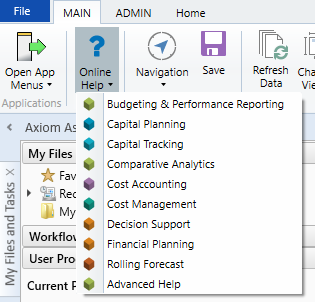
Online help - From the Main or Admin ribbon tab, click Online Help, and then select the product. Axiom Help opens in a new browser window. The online help will only open for products you are licensed to use.
-
Contextual help - Form/web-enabled features include contextual help directly within the user interface. This information provides a quick summary and/or instructions specifically related to the screen you are using. You can access this information by clicking the question mark in the upper right corner of the screen. For more detailed information, open Axiom Help by clicking Open Help at the top of the contextual help dialog.

Escalating to Axiom Support
As always, we appreciate your commitment to Kaufman Hall. If you have any questions about your upgrade, please contact us by logging into Axiom, navigating to the online help for your product, and clicking the Support at the top of the home page.
Product upgrade notes
IMPORTANT: You must apply the Axiom Software 2019.4 upgrade before applying any 2019.4 Axiom product upgrades. Axiom software upgrades are backward compatible so that you can upgrade different products at different times, but you must upgrade to Axiom Software 2019.4 before the first product upgrade. Refer to the Axiom Software 2019.4 Release Notes and Axiom Healthcare Suite 2019.4 Release Notes for considerations before upgrading. Apply this update ONLY if you have already applied the release and completed all the manual setup steps from the corresponding release notes.
When upgrading to the 2019.4 version of Axiom Capital Planning 2019.4, keep in mind the following:
- This product upgrade contains updated templates, calculation methods, driver files, and remediated defects.
- KHA delivered reports may be replaced. Any report that you saved under a different name or created new will remain untouched. Replaced reports are available in Document History, if needed.
- Any KHA delivered report that was moved to a new location will automatically move back to its original location.
- KHA product templates and calculation method libraries will be replaced.
- Product task panes will be replaced.
- Process definitions will not be replaced.
- Security roles and sub-systems will be reset to their configured settings. All user security exceptions you may have made will remain intact.
- Specific items configured as part your organization's implementation such as imports, exports, driver files, and process management files, will remain as is. Any required modifications to these areas are covered in the release notes, if required.
New features summary
See What's new.
2019.4 - Known issues resolved
The following tables list the resolutions for issues addressed in 2019.4, released on December 16th, 2019:
Excel and Web systems
| Issue | Description |
|---|---|
| PFB-08208 - Issue w/ Capital Planning Validating Projects in Workflow [TFS 40541] |
Issue: When creating a Capital Planning workflow for project approvals, the system displays an error message during the first step of the workflow when the system validates the projects. Resolution: Corrected an error in the Financial Inputs AQ filter. |
| Capital Project Import Utility project type detail missing data [TFS 39921] |
Issue: If a project type detail value is added to the driver table, a user cannot select it in the utility. Resolution: Corrected by sorting by columns B and C as well as added a new filter. |
Web system only
| Issue | Description |
|---|---|
| CP Executive Summary Report - Business Plan tab Descriptions are getting cut off [TFS 39505] |
Issue: The Executive Summary report does not display descriptions in full. Resolution: Corrected the column width to display the description. |
| Contractual Allowance methodology change error |
Issue: When a user selects a value other than Per Case and enters a value, it will save, but when the plan file is reopened the value disappears. The same happens for Ancillary and OP. Resolution: Corrected by updating the contractual allowance section of the calc method library to pull in the previously saved drop-down values for each of the drop-down sections and updated the changes in column D of AQ4. |
| Changing account values doubles entries when transferred from CP to CT [TFS 40124] |
Issue: Rows in the template duplicate because if the user has a Capital Planning and Capital Tracking system, the user would only ever set the Default GL account in Capital Planning. The template in Capital Tracking looks for the Default GL account in CT_Setup, even though the user already set this in Capital Planning driver, which caused duplicated rows. Resolution: Corrected by updating row 125 in the Variables sheet to not switch to CTSetup when in Capital Tracking. |
| POTRANS table department populating with 0 [TFS 40348] |
Issue: When creating a new purchase request, the system passes the values from Create_Open_PurchaseRequest to the POTRANS table. However, the POTRANS.Dept value is not included and, in the POTRANS table, this value's default is zero. When a new record is created, the zero initially gets saved to the table. When the user does not have access to Dept=0, a problem occurs. Resolution: Corrected by updating cell J12 in NewPurchaseRequest to bring in the department associated with the CAPREQ in the CTREQ table. NOTE: If you manually update utilities with a version including DEPT, be sure to also add DEPT to the POTRANS and CTDetail tables, otherwise the system will generate an error when saving data from the updated utilities. |
| Details tab error when date value removed [TFS 40600] |
Issue: When a user sets a text field to a date, clicks the X to blank out the value and then saves it, the tab displays an error on refresh. Resolution: Corrected by updating the formulas in Textfield column Y so that blanks (or NAs) remain blank on open or refresh. |
Excel system only
| Issue | Description |
|---|---|
| PFB-08064 - Unable to add new picklist rows in CP2018 [TFS 39585] |
Issue: Users cannot add new rows to the picklist drivers. Resolution: Corrected by removing the incorrect cell reference. |
| PFB-08087 - Legacy - CPREQ2020 and CPREQ2021 tables should have OTIS access disabled [TFS 39591] |
Issue: The OTIS read access for CPREQ2020 and CPREQ2021 tables should be set to None for theses dimensions in Legacy Capital Planning. Resolution: Corrected by setting the access to these tables to read only. |
| PFB-08235 - Capital Dashboard in Non-Web CP Product [TFS 40574] |
Issue: The Capital Dashboard asset is packaged with the non-web version of Capital Planning. This asset should be removed from the product package to avoid customer confusion, as this dashboard does not work without the web product. Resolution: Corrected so that the dashboard is no longer accessible by the non-web version of Capital Planning. |
2019.4.1 - Known issues resolved
The following tables lists the resolutions for issues addressed in 2019.4.1, released on January 27th, 2019:
Excel and Web systems
| Issue | Description |
|---|---|
| Project Selection Utility - Issues may occur with ordering on Project Ordering & Scoring tab [TFS 42157] |
Issue: The following issues may occur in these scenarios when sorting or grouping projects
Resolution:
|
Web system only
No issues were addressed in this release.
Excel system only
No issues addressed in this release.
